

September 22, 2026
Why FirstTouch Is the Safest Way to Run LinkedIn OutreachHow LinkedIn looks at your account, what puts it at risk, and the limits, approvals, and pauses that make FirstTouch the safest way to run outreach.
Deep Dives
READ MORE

Build a contact-based HubSpot workflow that automatically follows up with webinar registrants on LinkedIn through FirstTouch. It checks whether the contact owner is already connected, then sends a message or a connection request using Contrast webinar data.
This guide walks through building a contact-based HubSpot workflow that automatically follows up with webinar registrants on LinkedIn through the FirstTouch integration, using webinar data from Contrast. The workflow checks whether each registrant's contact owner is already connected with them on LinkedIn, then sends the appropriate outreach.
The completed structure: a trigger fires on Contrast webinar registration, feeding into a Check connection status action, which feeds into a three-way Branch (Connected / Not connected / None met). The Connected path ends in a Send message action and the Not connected path ends in a Send connection request action.
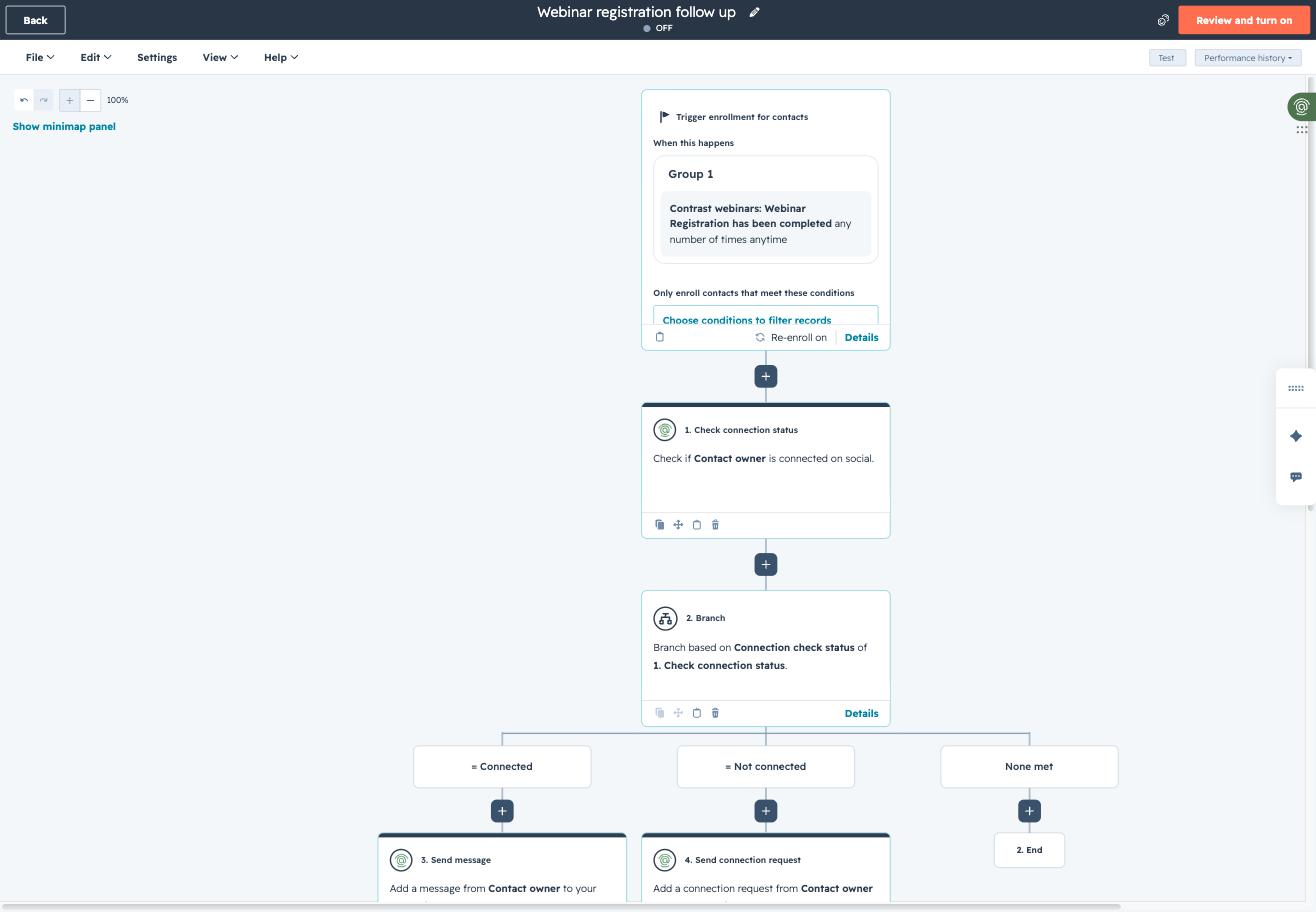
In the HubSpot workflow builder, open the trigger card and choose "When an event occurs." Search the criteria list for "Contrast" and select "Contrast webinars: Webinar Registration" from the App events section, then choose the "has been completed" event. Leave the frequency as "any number of times, anytime" so every registration re-triggers the follow-up.
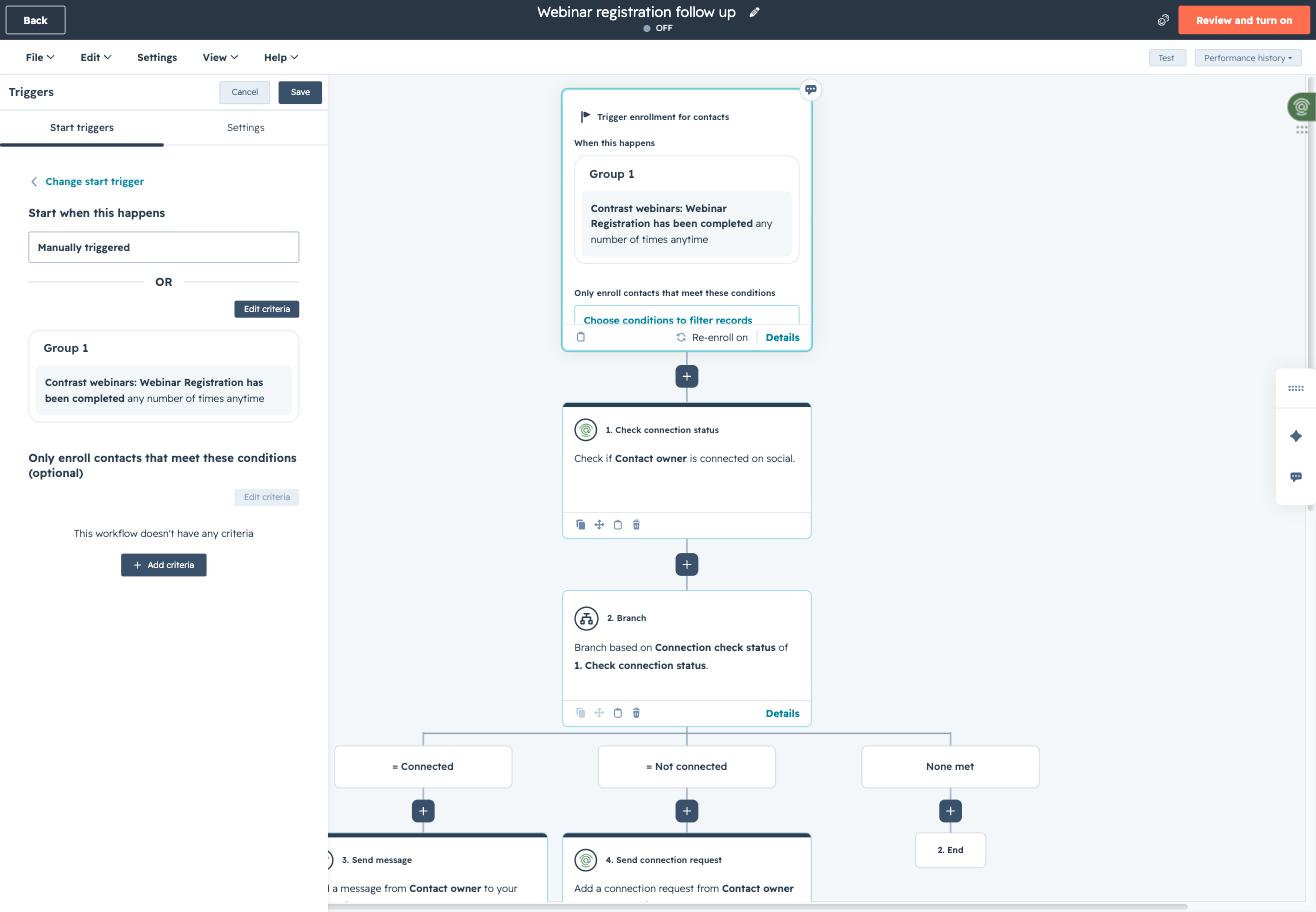
Click the plus icon below the trigger and search for "FirstTouch" among the integrated apps. Select "Check connection status." Set the Sender field to "Contact owner" so the check reflects the relationship between the registrant and their assigned owner, then save.
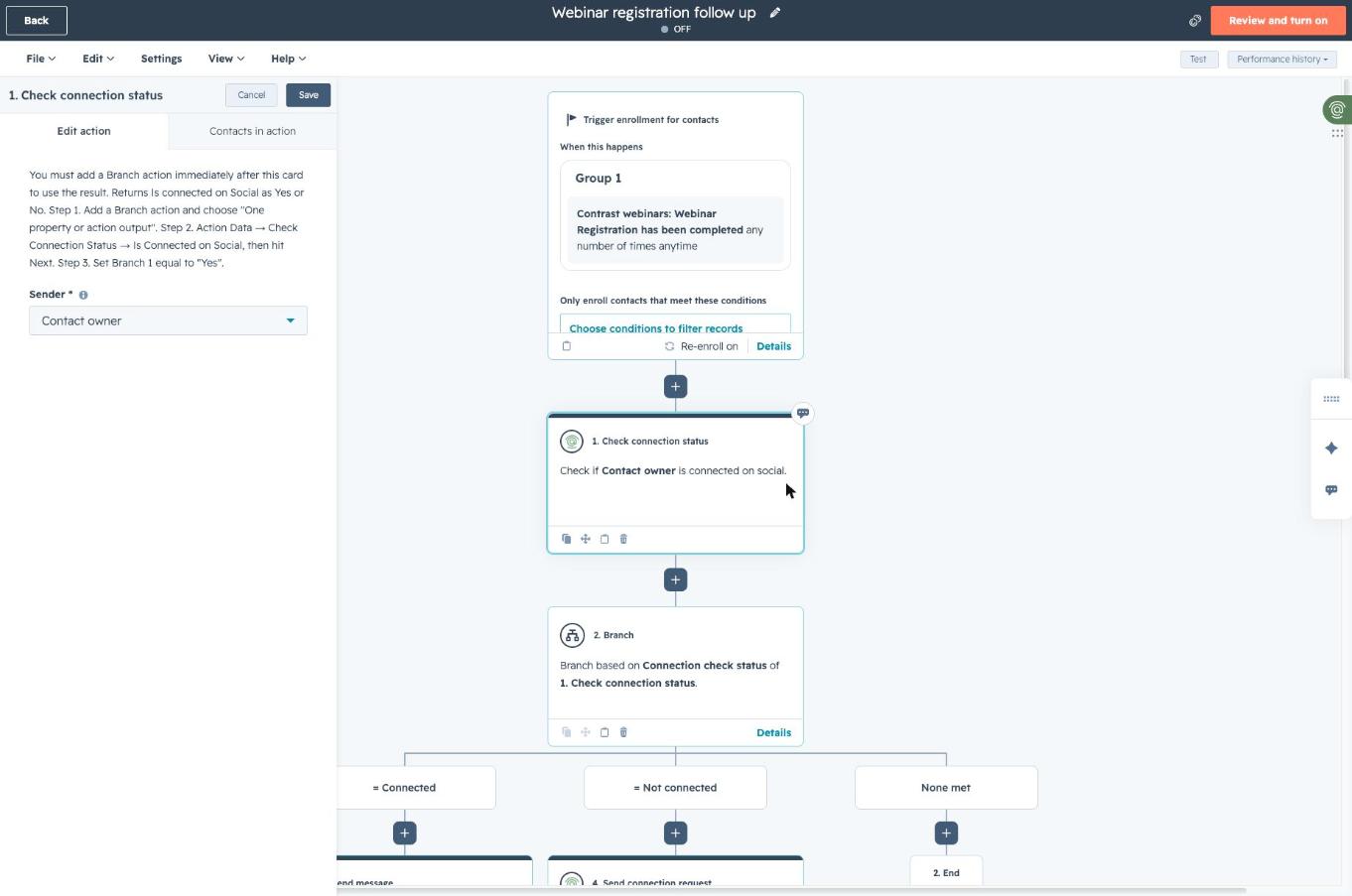
Click the plus icon below the Check connection status card and choose Branch, then "One property or action output." Select "Connection check status" from the Check connection status action's output. Set Branch 1 to "is equal to" "Connected," then add a second branch set to "is equal to" "Not connected." The third, unlabeled fallback branch automatically catches any other result and is labeled "None met" by default.
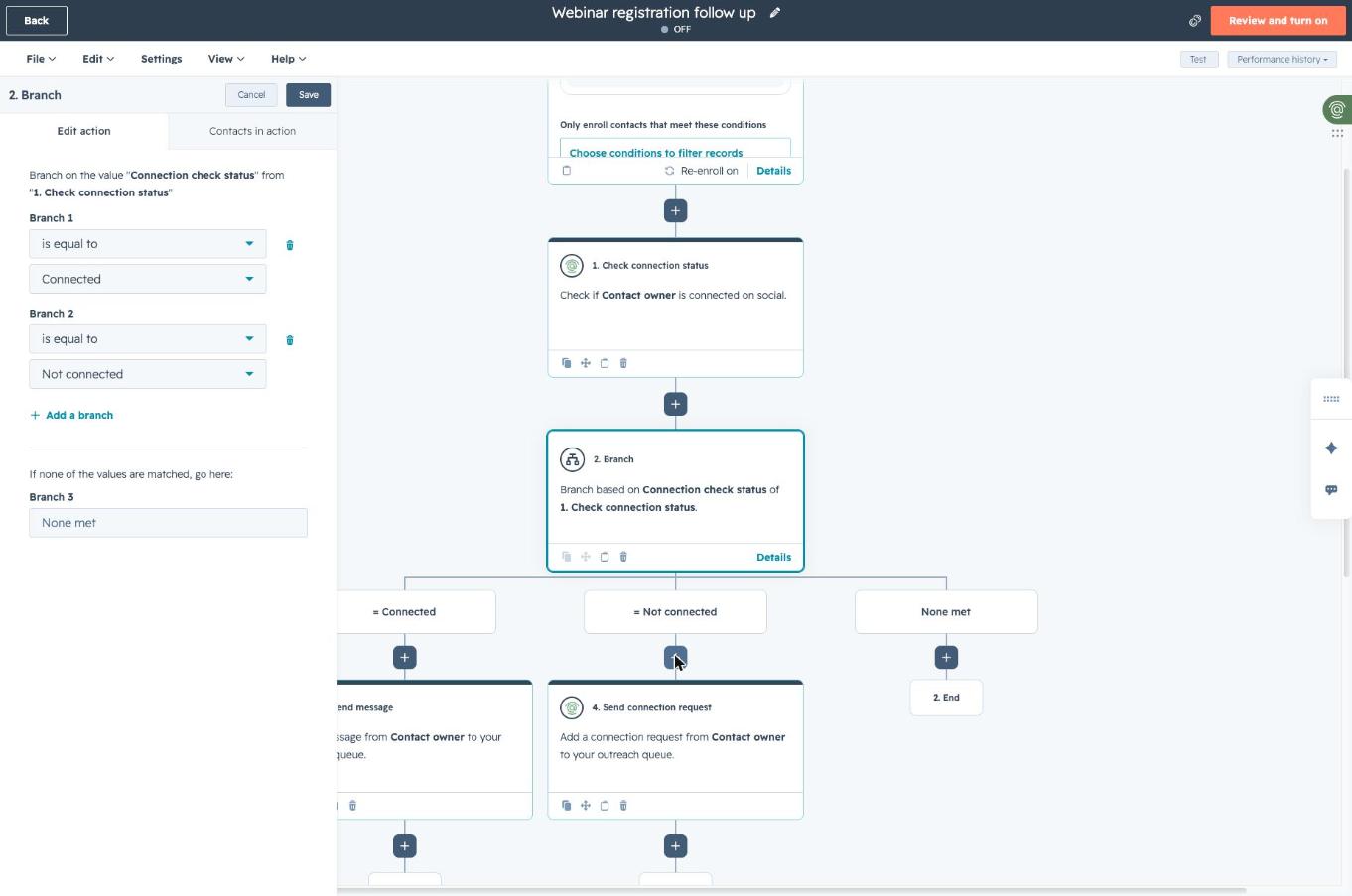
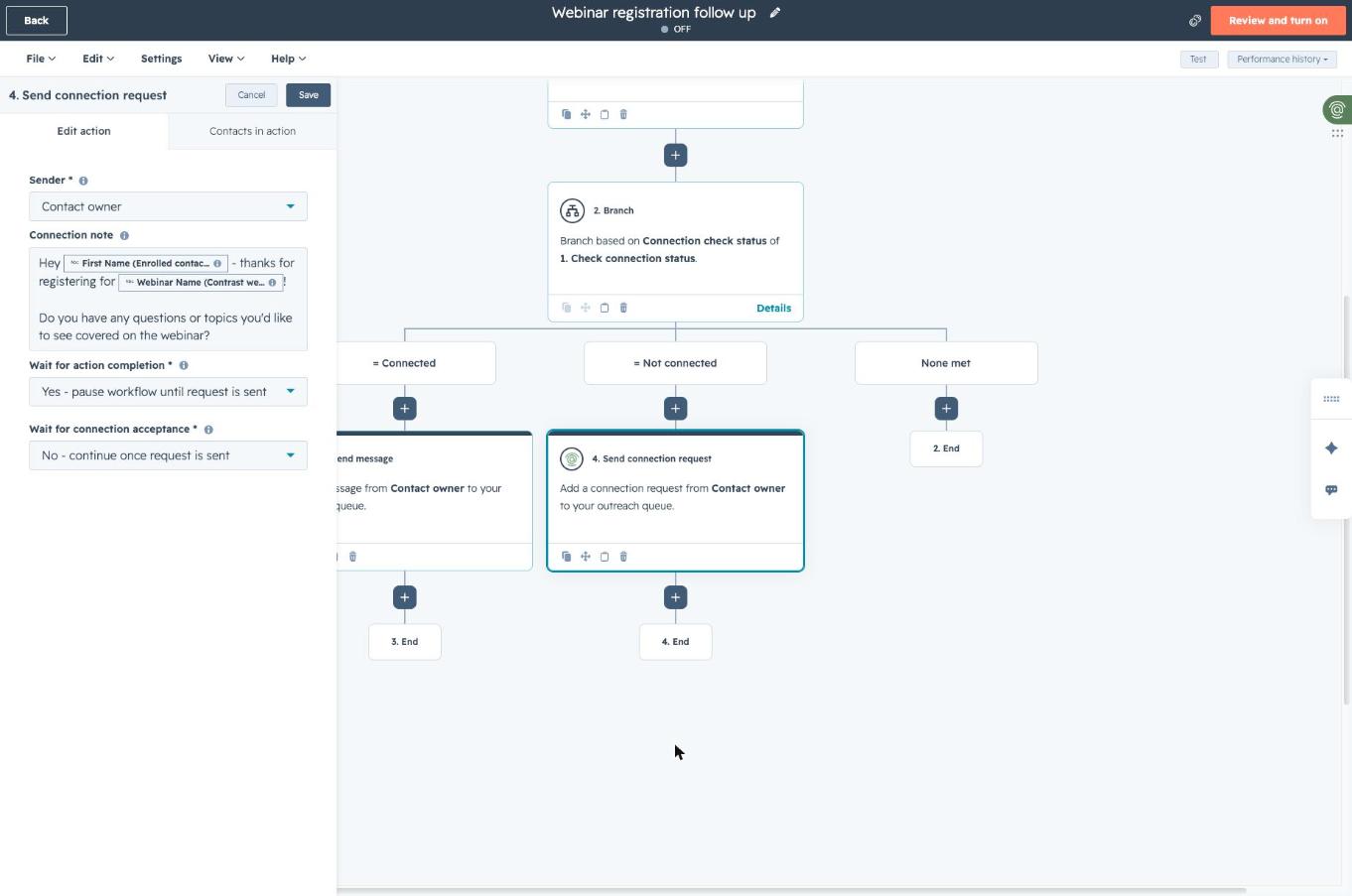
Under the "= Not connected" branch, add a FirstTouch "Send connection request" action. Set the Sender to "Contact owner." In the Connection note field, insert the "First Name (Enrolled contact)" token, then the "Webinar Name" token, and type your message copy around them. Set "Wait for action completion" to "Yes - pause workflow until request is sent," then set "Wait for connection acceptance" to "No - continue once request is sent."
Under the "= Connected" branch, add a FirstTouch "Send message" action. Set the Sender to "Contact owner," then insert the same First Name and Webinar Name tokens into the Message field along with your message copy. Choose a value for "Wait for action completion" (this workflow uses "No - continue immediately").
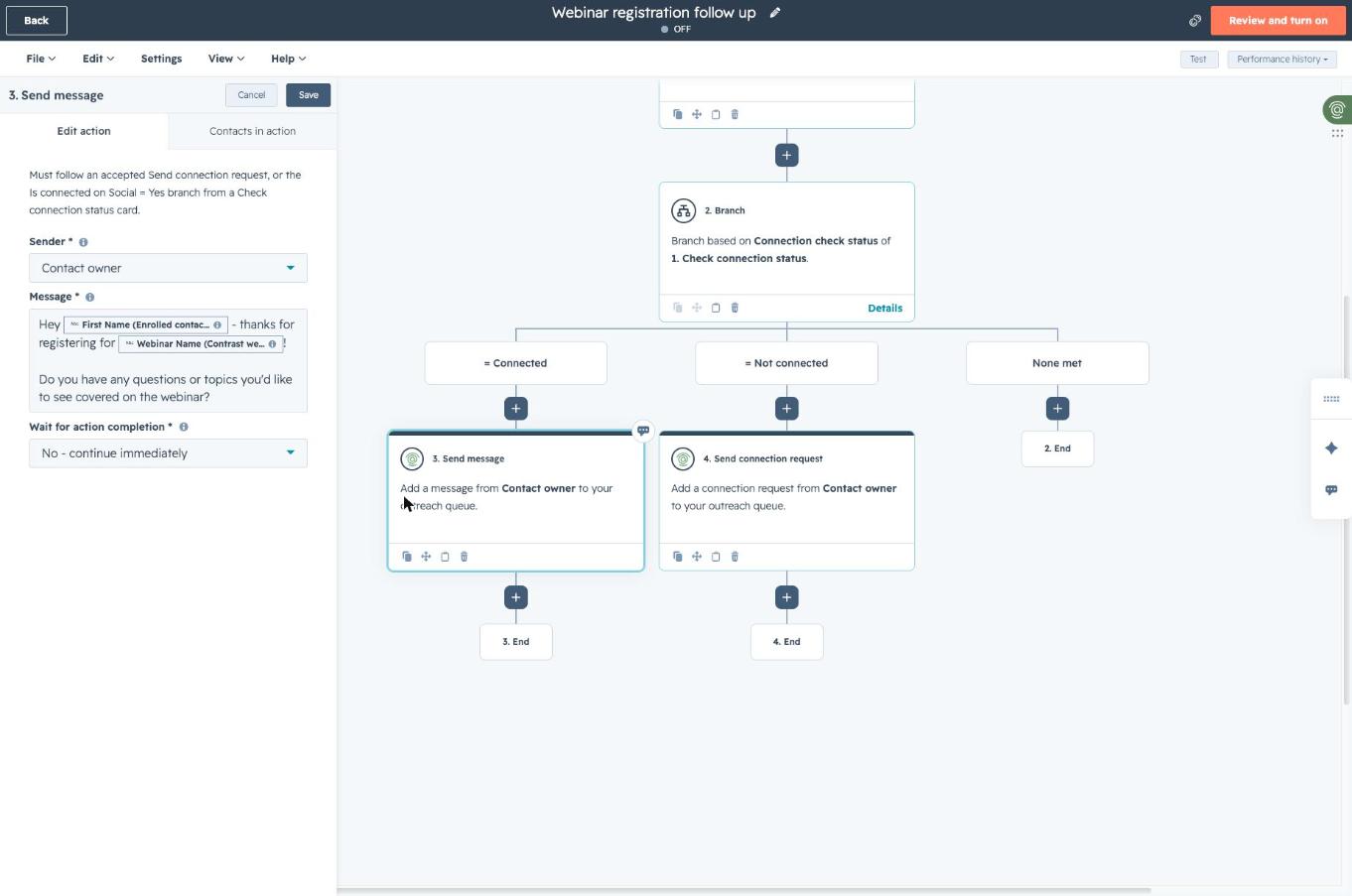
Both message templates support HubSpot personalization tokens. Use "First Name (Enrolled contact)" and "Webinar Name" tokens from the Contrast integration to keep outreach relevant and personal at scale.
The workflow remains toggled OFF until you click "Review and turn on" in the top right. Use this pause to double check the sender logic, confirm the branch conditions match your LinkedIn connection statuses, and proofread both message templates before enrolling live contacts.
Operationalize social inside HubSpot. Action and report on it, just like email.
Start free trialRun webinars that drive pipeline. Trigger follow-ups in HubSpot automatically.
Start for freefirsttouch.com and getcontrast.io
How LinkedIn looks at your account, what puts it at risk, and the limits, approvals, and pauses that make FirstTouch the safest way to run outreach.
A LinkedIn MCP server gives an AI agent LinkedIn tools. Most only read data. Here is what each kind does and which one to use in 2026.
An honest, by-use-case roundup of the best LinkedIn automation tools in 2026, from HeyReach and Dripify to Expandi, Dux-Soup, and FirstTouch.