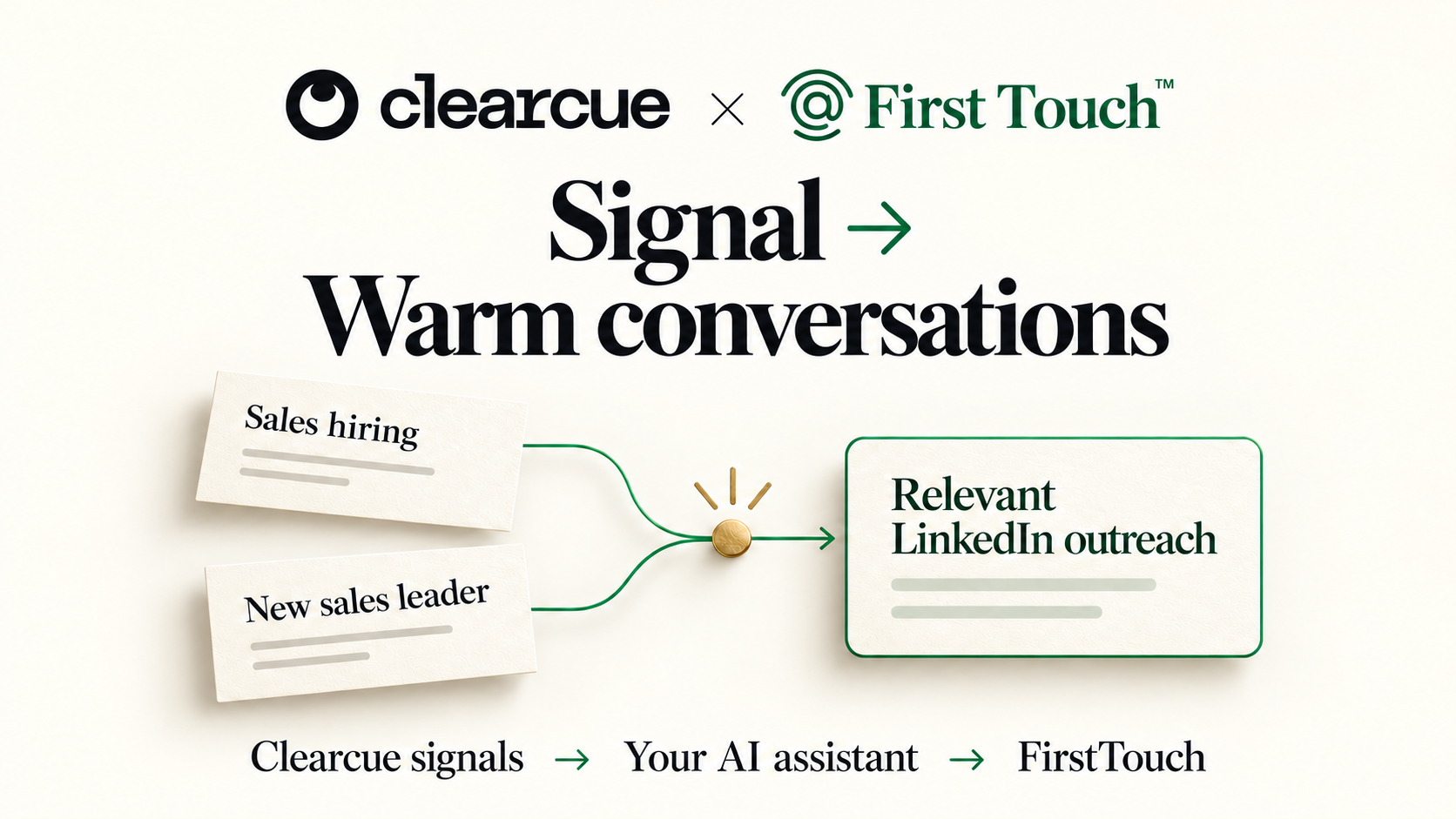

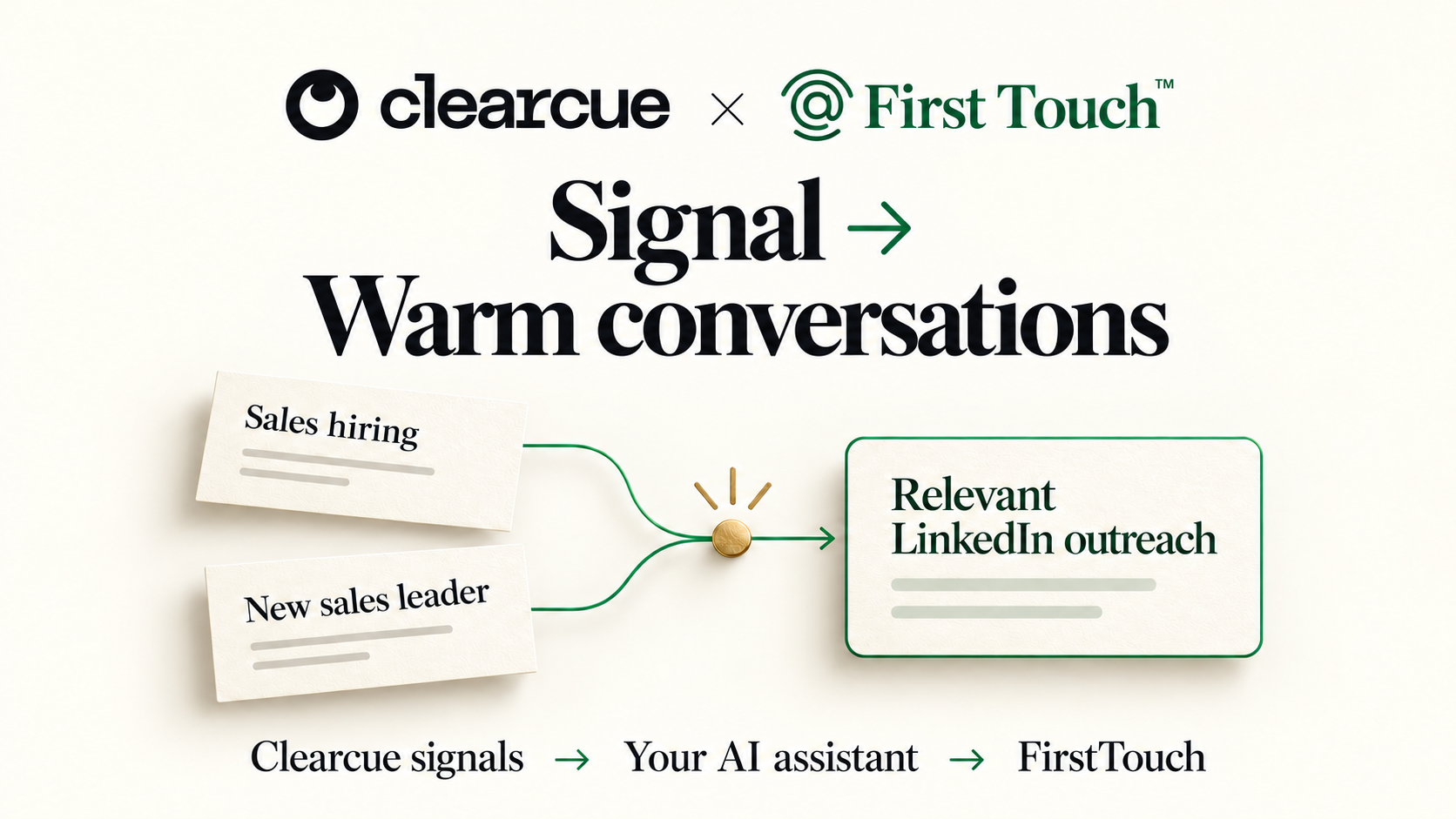
The best outreach starts with a clear reason to talk. When you know what changed at a company and why it matters, the message becomes much easier to write.
Clearcue helps sales teams find that reason. It tracks signals such as hiring, leadership changes, company growth, and LinkedIn activity, then helps you combine them to find relevant people and accounts. FirstTouch turns that context into LinkedIn outreach and tracks it in HubSpot when your integration is connected.
Connect both tools to an AI assistant, and you can build a daily workflow for your own company: find the right signal, write a relevant question, and start a conversation.
In this article
Signal stacking is the real power of Clearcue
A company hiring salespeople is a useful signal. Combine that with the tools it uses, the size of its sales team, and its activity on LinkedIn, and you have a much clearer reason to reach out.
For example, a company selling a LinkedIn-to-HubSpot workflow could use this stack:
- Software company using HubSpot.
- At least 10 sales reps.
- A strong presence on LinkedIn.
- Hiring business development reps or account executives, or a recent sales leadership change.
The first three criteria define the fit. The hiring or leadership change gives you a reason to reach out now. You do not need both trigger events.
Build your stack around the problem your company solves. A recruiting business might care about several open roles and a new department leader. An onboarding platform might care about a growing team and expansion into a new location. Choose signals that make your offer more relevant.
The signal is the message
When the signal is specific enough, you do not need a clever opening or a long pitch. Say what you noticed, then ask a question about the problem it creates.
For a company whose tenth sales hire is verified, the message could be:
Saw you just brought on your 10th rep and are heavily active on LinkedIn. Are you able to tie that LinkedIn activity to revenue inside HubSpot?
The growth milestone explains the timing. LinkedIn activity and HubSpot explain the question. That is the signal doing the work of the copy.
“Has at least 10 reps” does not mean “just hired the 10th rep.” If your evidence only shows current team size, use the change you can verify instead: “Saw you're hiring AEs and your team is active on LinkedIn.”
Use this structure for your own company:
Saw [verified change] and [relevant context]. [One simple question about the outcome your company helps with]?
For example, an onboarding platform could ask: “Saw you're hiring across three new locations. How are you keeping onboarding consistent as those teams grow?” The signal and the question should belong together.
Why a narrower signal can convert better
“Software companies” gives you a broad list and a broad message. “Software companies using HubSpot, growing their sales team, and active on LinkedIn” gives you a specific audience and a question that fits their situation.
The more relevant context you combine, the less work the recipient has to do to understand why you reached out. That can mean more replies and better conversion into conversations and meetings.
Narrow the audience around relevance, not arbitrary filters. Compare positive replies and meetings across your signal stacks to see which combinations work for your company.
Connect Clearcue MCP first
MCP lets your AI assistant use tools from connected products. You will connect Clearcue to find the context and FirstTouch to act on it.
- In Clearcue, save your audience and signal stack. Define what counts as recent and what activity qualifies an account.
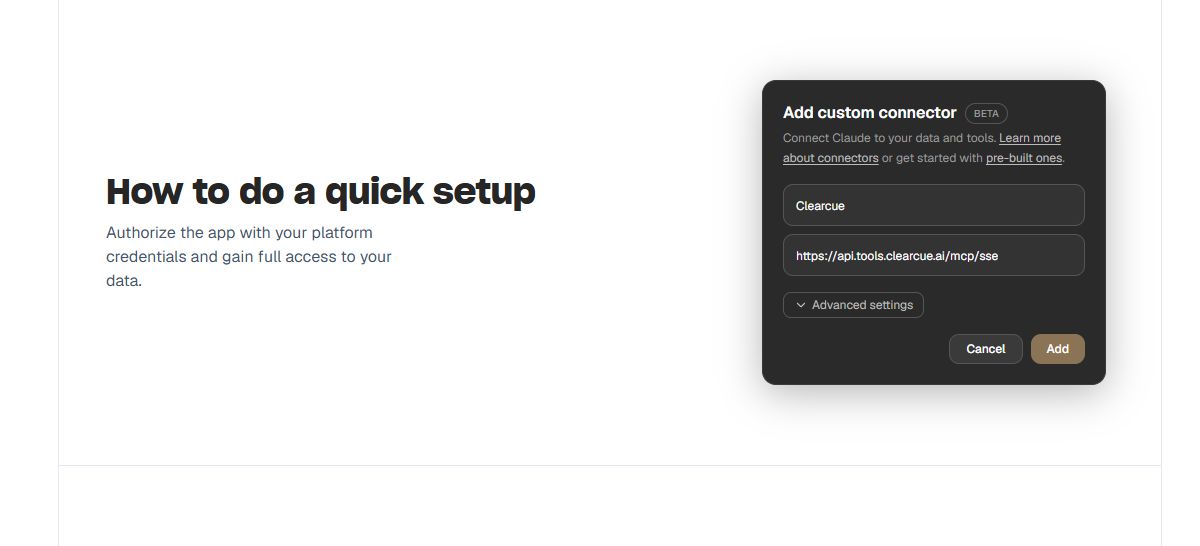
- Open Settings → Integrations → Clearcue MCP. In your assistant, add the Clearcue server using the URL shown there. The public setup guide shows
https://api.tools.clearcue.ai/mcp/sse. - Sign in to the correct Clearcue workspace.
- Ask your assistant to show a few matches from your saved signal, with the source and date for each. Check that the results support the message you want to send.
Then connect FirstTouch MCP
- Connect your sending LinkedIn profile in FirstTouch. Connect HubSpot if you want outreach tracked there.
- Open Settings → MCP & API and add
https://mcp.firsttouch.aias a second MCP connection in the same assistant. - Authorize your FirstTouch team. Ask the assistant to check the sender and load the Dynamic Actions guide.
Full MCP tools require an active trial or paid plan; creating Dynamic Actions requires Team Admin permissions. Actions require approval by default. Choose your approval settings explicitly before turning on automatic sends. See the FirstTouch setup guide.
Use a short sequence with two possible paths
Start with a connection request without a note. After acceptance, send the signal-based message and one simple bump if there is no reply.
No reply? One simple bump after 3 days.
Exactly the same body as the first DM.
Stop on reply. Already connected? Start with the DM.
Message 1: use your verified signal and one relevant question, following the formula above.
Bump: “Just bumping this. Curious how you're handling this today?” A three-day delay is a useful starting point.
If they do not accept: send one InMail with exactly the same body as message 1. Use a short subject related to the question. FirstTouch's default acceptance window is 14 days; you can choose a different one.
If already connected, skip the request and start with the DM. Stop on a reply and after the final follow-up. Keep the accepted and timeout paths in one enrollment so a later acceptance does not trigger a duplicate opener. Confirm the branch and reply-stop behavior before enabling automatic follow-ups. InMail requires an eligible account; FirstTouch uses a normal message for a saved first-degree connection.
Make it a daily task
Ask your assistant to check your saved Clearcue signal each day and prepare outreach for new matches. Start with one preview, then confirm the sender, daily time and timezone, contact limit, and approval settings.
The assistant needs a persistent record of processed signals and contacts, such as a connected Google Sheet. That stops tomorrow's run from enrolling the same person again. FirstTouch manages the sequence delays after enrollment.
Use the prompt below, replacing the bracketed settings with your company, audience, and offer. The example stack is a starting point, not a requirement for every business.
Use my connected Clearcue and FirstTouch MCP tools to turn relevant signals into LinkedIn conversations for my company. Start with one read-only preview. Fill in the settings with my choices before activation. Save the completed prompt in the daily task; do not create another schedule during a scheduled run.Choose your assistant
ChatGPT: add both custom MCP servers through Plugins, test them in the same chat, then ask ChatGPT to schedule the completed prompt daily. Check the saved task in Scheduled. Connection guide · Scheduling guide.
Claude: add both custom connectors, test the prompt, and create a recurring task in Scheduled in Cowork. Make sure the task retains both connections and access to your processed-contact record. Scheduling guide.
Grok Bot: connect both MCP servers, save the workflow as a skill, and create a daily routine using it. Check its connections and approval settings. App connections · Skills and routines.
Other agents: use a client that supports both MCP servers, recurring runs, and a persistent record of processed contacts.
Start with the signal stack that makes your offer most relevant. When the reason to reach out is clear, the message can stay simple.